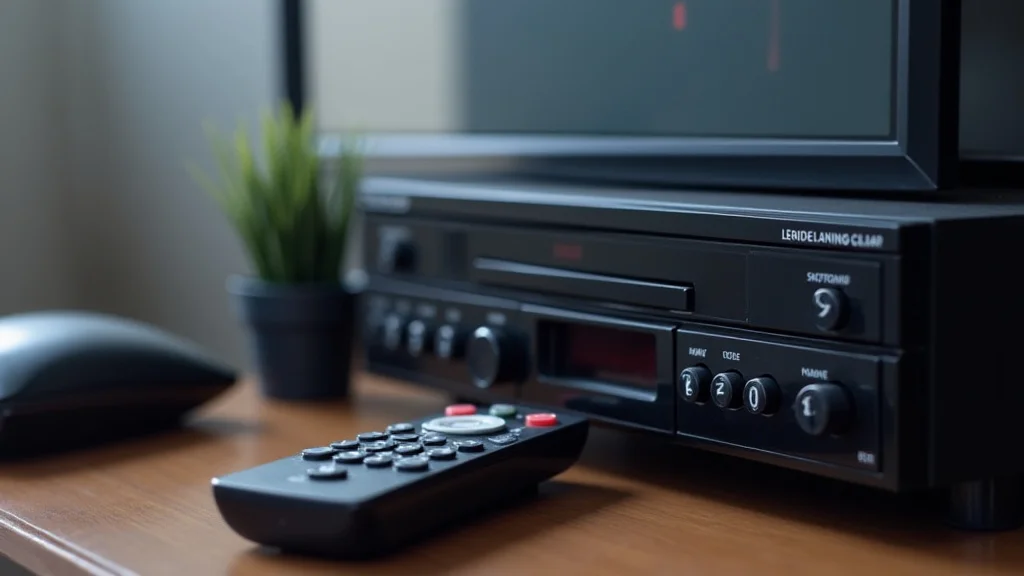

Remember that box of old VHS tapes in the attic? Maybe you’ve rediscovered some classic movies or home videos you thought were lost. Suddenly, you realize you need a way to watch them! But wait, how do you even connect a VCR to your television these days? Don’t worry, it’s easier than you think. This guide will take you step-by-step through the process, regardless of your TV type, ensuring you can enjoy those memories. You’ll gain the knowledge to get those tapes playing, improving your enjoyment and making those old recordings easily accessible again.
Gathering Your Gear
Before you begin, make sure you have everything you need. This might seem obvious, but a missing cable can halt the whole process! Double-check that you have a working VCR, a television, and the necessary cables. It’s also a good idea to have a VHS tape ready for testing. This ensures your VCR is functioning and confirms the connection is successful. Consider the type of TV you have. Older TVs often use different connection types compared to modern ones. Having the right cables ready ahead of time will prevent frustration and save you time. This pre-planning step sets the stage for a smooth setup.
Essential Components
The core elements are straightforward, but each plays a critical role in the operation. Having the right tools guarantees a successful outcome. Let’s look at each item:
- The VCR: This is the heart of the operation. It’s where your VHS tapes go, and where the video signal originates. Inspect it for any obvious damage. If you haven’t used it in a while, give it a quick cleaning with a VHS head cleaner to improve picture quality. Check that the power cable is in good shape and that the eject button works. A fully functional VCR is your starting point.
- The Television: Your television is the display, where you’ll see your tapes. Ensure it’s in working order and has the necessary inputs (more on that later). Consider the type of TV – older CRT TVs (the big, boxy ones) usually have different inputs than modern LCD or LED TVs. Knowing your TV’s connection options is vital.
- The Cables: This is where things get a little tricky, as different TVs require different cables. This depends on your TV’s capabilities and the VCR’s outputs. Common cable types include RCA cables (red, white, and yellow), coaxial cable, and sometimes, a SCART cable. Having these cables ready ensures compatibility.
Cable Types Explained
Cable types can be a source of confusion. Each cable type transmits the video and audio signals differently, affecting the picture and sound quality. The most common types are:
- RCA Cables (Composite Video): These are the most common and simplest cables, typically with three connectors: yellow for video, and red and white for audio (stereo). They are suitable for most televisions. These cables offer basic quality, but are generally the easiest option to utilize.
- Coaxial Cable (RF): This is an older, single-cable connection that carries both audio and video signals. It’s often used with older VCRs and TVs. The quality is usually poorer than RCA. This method will likely require you to tune your TV to a specific channel.
- SCART Cable: Primarily used in Europe, this cable carries both audio and video signals and can provide a better picture quality than composite video. Not as common in North America. This typically has a multi-pin connector for a more comprehensive signal transfer.
Connecting to Your Television
The setup process changes depending on the type of cables you have available and your TV’s inputs. We’ll explore each option. Be gentle when plugging and unplugging cables to avoid damaging the connectors. Take care to match the colors of the cables to the corresponding ports on your VCR and TV. When you are done, you should be able to get those VHS tapes running with a few simple steps.
Connecting with RCA Cables
This is often the simplest method, as RCA cables are widely used. Just follow these steps:
- Plug the yellow RCA cable into the “Video Out” port on your VCR and the corresponding “Video In” port on your TV. These are usually colored yellow.
- Connect the red and white RCA cables from the VCR’s “Audio Out” ports to the matching “Audio In” ports on your TV. These might be labeled “Audio L” and “Audio R” or just have the same red and white color scheme.
- Turn on both the VCR and the TV.
- On your TV, select the correct input source. This is usually done by pressing the “Input” or “Source” button on your remote control and choosing the input that matches the RCA connections (e.g., “AV”, “Video”, “Input 1”, or similar).
- Insert a VHS tape into the VCR and press play. You should now see and hear the video on your TV. If not, double-check all connections and make sure the TV is on the correct input.
Connecting with a Coaxial Cable
This is a more basic connection, mainly found on older TVs. It’s a straightforward approach:
- Connect one end of the coaxial cable to the “RF Out” port on your VCR.
- Connect the other end to the “Antenna In” or “Cable In” port on your TV.
- Turn on your VCR and TV.
- On your TV, you’ll need to tune to the channel that the VCR is broadcasting on. This is usually channel 3 or 4. If you don’t know the channel, try both. The VCR might have a switch to select the channel. Use your TV’s channel up/down buttons to find the VCR signal.
- Insert a VHS tape and press play. You should now be able to see and hear the video.
Connecting with a SCART Cable
If you have a SCART cable and compatible devices, this can provide better picture quality. This process is generally plug-and-play:
- Plug the SCART cable into the SCART port on both your VCR and your TV. Ensure the cable is fully inserted.
- Turn on the VCR and the TV.
- Select the SCART input on your TV. This is usually labeled on your TV’s input menu. You will likely be able to identify this by its symbol.
- Insert a VHS tape and press play. The video should appear on your screen.
Troubleshooting Common Issues
Things don’t always go smoothly the first time. Here’s a guide to common problems and how to solve them. Patience is key! Working through some problems might be necessary.
No Picture or Sound
This is the most common problem. Here’s what to look at:
- Check the Connections: Make sure all cables are firmly plugged into the correct ports on both your VCR and your TV. The connection has to be made correctly to ensure signal transmission.
- Verify the Input Source: Confirm that your TV is set to the correct input source that matches your cable connection (AV, Video, Input 1, etc.). Incorrect input selection will prevent the signal.
- Test the Cables: Try swapping out the cables with known working ones. A faulty cable is a common culprit. If you have another set of RCA cables, give them a try.
- Check VCR Power: Make sure the VCR is turned on and the power light is illuminated. A VCR that is not running won’t send any signal to the TV.
Poor Picture Quality
If the picture is blurry, snowy, or has other quality problems, consider these points:
- Clean the VCR Heads: Use a VHS head cleaner to remove any dirt or debris from the VCR’s internal components. This is especially useful if the unit has been sitting for a long time. Over time, the heads can collect buildup from the tapes.
- Check the Tape: The VHS tape itself might be damaged or old. Try a different tape to see if the problem persists. Some tapes simply degrade over time.
- Cable Quality: RCA cables have variable quality. Consider upgrading to better-quality cables, especially if you’re experiencing a lot of noise or interference.
- Coaxial Issues: If you are using a coaxial cable, the signal quality is often lower. Try using RCA cables instead if your TV supports them.
No Sound
No sound can be frustrating, but these steps usually help:
- Check Audio Connections: Make sure the audio cables (red and white RCA cables) are connected to the correct audio input ports on your TV. Double-check that you plugged them in fully.
- TV Volume: Make sure the TV’s volume is turned up and not muted. Simple adjustments are often the solution!
- VCR Volume: Some VCRs have a volume control. Make sure it’s not turned down or muted.
- Test the Audio: Try a different tape or a different audio source to determine if the issue is with the VCR or your TV.
Understanding TV Inputs
Your TV’s input options dictate how you connect a VCR to your television. Modern TVs have multiple options, while older TVs may have fewer. Knowing what you have available and how to select them is important.
Common TV Input Types
TV inputs determine the types of connections available. Let’s look at the more common ones:
- Composite (RCA): The most basic video connection, using the yellow RCA cable for video and red/white for audio. This is the oldest option, but is also widely accessible.
- Component: Uses three separate cables for video (red, green, blue) and two for audio. It provides better image quality than composite. This is an advanced option and not all televisions are equipped to handle this type of cable.
- HDMI: This is a digital connection that carries both audio and video. VCRs do not use HDMI. This is standard on modern TVs.
- Coaxial: An older connection used for antenna and cable signals. It can also be used for VCRs, but the picture quality is lower. Coaxial input is still a common feature in most modern televisions.
Selecting the Correct Input
After you connect a VCR to your television, you’ll need to tell your TV which input to use. This is typically done with your TV remote control:
- Press the “Input,” “Source,” or “AV” button on your TV remote. The button name might vary, but it’s used to switch between different input sources.
- A menu will appear on the screen, showing the available input options (e.g., AV1, AV2, HDMI1, HDMI2, etc.).
- Use the arrow keys on your remote to select the input that matches your VCR’s connection. For example, if you used RCA cables, you would select the “AV” input.
- Press the “OK” or “Enter” button to select the chosen input. The video from your VCR should now appear on the screen.
TV Input Locations
The location of the input ports on your TV can vary, but generally:
- Older TVs (CRT) typically have the input ports on the back of the set.
- Modern TVs often have input ports on the back, the side, or both, making them more accessible. This setup provides easier access to all the ports.
- Refer to your TV’s manual for precise locations of the input ports. Manuals can be accessed online if you no longer have the original.
Alternative Connection Methods
If your TV has limited options, or you want to enhance the quality, there are some alternative methods you can try. These methods might also increase picture clarity.
Using a VCR to DVD Recorder Combo
This is a convenient choice if you plan on digitizing your tapes. These units combine a VCR with a DVD recorder, so you can play your tapes and simultaneously copy them to DVD. They often include multiple input options. This combo offers a two-in-one solution for your old video media.
Example: You find a VHS tape of your tenth birthday. Instead of just playing it, the VCR/DVD combo allows you to make a digital version for future viewing.
Using a Digital Converter Box
If your TV has an HDMI port but lacks the correct inputs for your VCR, you can use a digital converter box. These boxes convert the analog signal from the VCR to a digital signal that can be transmitted through HDMI. Some offer a better output signal.
Example: You have an older VCR, but a newer television. A converter box becomes the go-between, allowing you to watch the tapes without any issues.
Using a Media Player
Some media players have the capability to connect to older devices, or even convert analog signals. These can serve as a bridge, improving the experience.
Advanced Techniques and Considerations
Once you connect a VCR to your television, you might be interested in enhancing your viewing experience. Here are some advanced tips and factors to consider.
Optimizing Picture Quality
You can improve your viewing experience through several methods:
- Clean the VCR Heads Regularly: Cleaning the video heads is one of the easiest ways to ensure the best picture quality. Use a head cleaner tape. Regular cleaning can significantly reduce noise and improve picture clarity.
- Adjust Your TV’s Picture Settings: Adjust the brightness, contrast, color, and sharpness settings on your TV. Experiment with these settings to achieve the best picture. Some TVs have preset modes for different types of content, such as “Movie” or “Vivid.”
- Consider the Tape Quality: The quality of the VHS tape itself impacts the picture. Old tapes may suffer from degradation, resulting in a poorer picture. This is normal, as tapes gradually lose quality with age.
- Minimize Interference: Position your VCR and TV away from other electronic devices that could cause interference. This can help reduce any unwanted visual noise.
Digitizing Your VHS Tapes
If you want to preserve your videos, consider digitizing them. Several options are available:
- Using a VCR/DVD Recorder Combo: As discussed earlier, this is a convenient way to make digital copies. It works well and allows you to watch and record at the same time.
- Using a Video Capture Device: This device connects your VCR to your computer via USB. You can then record the video from your tapes onto your computer. Video capture devices work by converting the analog video signal from the VCR into a digital file.
- Using a Professional Service: If you have a large collection of tapes or want the highest possible quality, you can send them to a professional service. They have specialized equipment to convert and improve video quality.
Caring for Your VHS Tapes
Proper storage is important to prevent tape degradation. Follow these steps:
- Store Tapes in a Cool, Dry Place: Heat and humidity can damage your tapes. A room with controlled temperature and humidity is ideal.
- Keep Tapes Upright: Storing tapes flat can cause the tape to become unevenly wound. Storing them upright helps prevent this.
- Avoid Direct Sunlight: Sunlight can fade the colors on your tapes and cause other damage. Keep them out of direct sunlight.
- Rewind Tapes Before Storage: Rewinding the tape before storing it helps to ensure that it’s evenly wound and reduces the risk of damage.
Frequently Asked Questions
Question: My TV only has an HDMI port. How can I connect my VCR?
Answer: You will need a digital converter box that converts the analog signal from your VCR (RCA or coaxial) into a digital signal that your TV can understand via HDMI.
Question: What’s the best cable to use for connecting my VCR?
Answer: If your TV supports it, RCA cables typically offer the best quality connection. If not, a coaxial cable will work.
Question: My picture is snowy. What should I do?
Answer: Clean the VCR heads with a head cleaner tape. Also, ensure the cables are securely connected. Consider the state of the VHS tape itself, as older tapes often experience some degradation.
Question: I don’t get any sound. What might be the problem?
Answer: Double-check that the audio cables (red and white RCA cables) are connected to the correct audio input ports on your TV. Make sure the volume on both your TV and VCR is turned up.
Question: My VCR is old. Is it worth fixing it?
Answer: If you have a lot of tapes you want to watch or digitize, then yes. However, if the VCR is severely damaged, you might consider getting a new or refurbished model.
Final Thoughts
Getting your VCR working with your television doesn’t have to be hard. By gathering the right cables, choosing the correct connection method, and checking your TV’s input settings, you can easily relive your favorite moments captured on VHS. Knowing how to troubleshoot and understanding the different cable types simplifies the process. Once connected, your tapes are ready to view. Consider digitizing your tapes to protect them from further degradation and to make them easily accessible on modern devices. So, grab some popcorn, insert a tape, and enjoy those memories. It’s time to experience your classic videos again!
